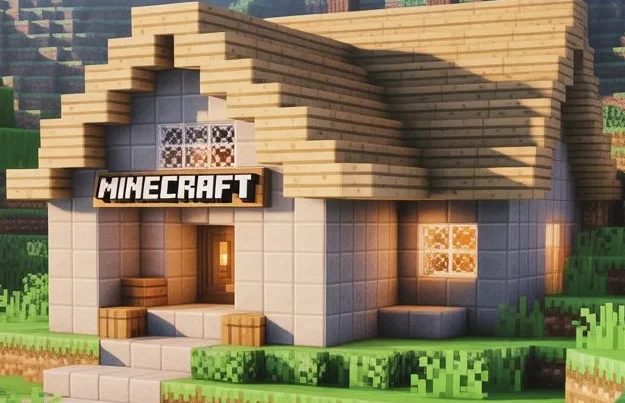
Minecraft Custom Worlds: Build, Explore, and Play.
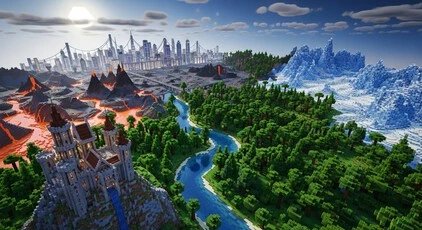
Every Minecraft Custom Worlds player reaches that point where the default world just isn’t enough. You’ve mined, built, and explored it all. The biomes start to repeat. The thrill fades.
That’s when custom Minecraft custom worlds change everything. These worlds let you shape the terrain, design structures, and set your own rules. You can build floating islands, desert temples, or survival arenas—whatever your imagination allows.
Using a world generator or texture packs, players can make their worlds look and feel completely new. Some use datapacks to add new biomes. Others start fresh with unique custom seeds.
Custom worlds work
Minecraft Custom Worlds work across Java Edition, Bedrock, PC, Xbox, and Nintendo Switch. Whether you play solo or on a multiplayer server, they keep Minecraft exciting and personal.
In this guide, you’ll learn how to create, install, and explore custom worlds. We’ll also share trusted sources like Planet Minecraft download, CurseForge, and MinecraftMaps—the go-to spots for creators and explorers alike.
What Are Minecraft Custom Worlds?
A Minecraft custom world is a map made just for you. Players can create it manually or use tools to generate it automatically. These worlds offer unique terrain, structures, and gameplay. You can change dimensions, set special rules, or explore new biomes.
There are several types of custom worlds:
1. Custom world generator – Lets you create terrain from scratch or adjust hills, rivers, and oceans.
2. Custom seeds – Special codes that spawn worlds with unique features in the Overworld or the Nether.
3. Datapack-based worlds – Add new mobs, blocks, or gameplay mechanics without mods.
4. World presets – Predefined settings that shape the world instantly, like old customized worlds from older versions.
5. Adventure and survival maps – Designed for quests, challenges, or multiplayer fun.
Minecraft Custom worlds make every game different. You can explore new dimensions, survive dangerous landscapes, or build your dream base. They give Minecraft endless replay value.
How Custom Worlds Work (Java vs Bedrock)
Java Edition gives players full control over custom worlds. You can use datapacks, world presets, and tools like WorldPainter, MCEdit, or misode.world to shape terrain.
Java lets you add new dimensions and customize Overworld features freely. You can design mountains, rivers, and biomes exactly how you want. Dedicated servers support these worlds, making multiplayer more exciting. Mojang Studios updates ensure compatibility with the latest versions.
Minecraft Bedrock Edition works differently. You install add-ons or download worlds from sites like MCPEDL.
It’s easier for mobile, console, and cross-platform players, but customization is more limited. The Minecraft realistic Marketplace offers curated worlds ready to play. Players can explore, build, or survive without extra tools.
Both editions let you experience custom worlds, but Java is best for deep customization. Bedrock works well for quick downloads and casual play.
Tools & Generators You’ll Need
Creating or downloading a Minecraft custom worlds is easier with the right tools. Here’s a mini-toolkit:
- WorldPainter – Build worlds from scratch with a paint-like interface. Perfect for custom Overworld landscapes.
- MCEdit – Edit terrain, import structures, and adjust maps quickly. Great for Java Edition.
- minecraft.tools – Generate simple world presets and seeds in seconds. Ideal for beginners.
- Misode Minecraft Worlds – Advanced web-based generator for datapacks and unique features.
| Tool | Best For | Edition | Complexity |
| WorldPainter | Terrain design | Java | Medium |
| MCEdit | Editing & structures | Java | Medium |
| minecraft.tools | Presets & seeds | Java/Bedrock | Easy |
| Misode Minecraft Worlds | Datapacks & advanced maps | Java | High |
| CurseForge & PlanetMinecraft | Download/upload maps | Java/Bedrock | Easy |
These tools make building or finding custom worlds faster and more fun.
Types of Custom Worlds to Explore
Minecraft Custom worlds let players enjoy Minecraft in new ways. Here are the main types:
Story-driven worlds with quests and challenges. Players follow objectives and explore unique Overworld and Nether locations. Ideal for fans of best custom adventure maps Minecraft Hardcore Mode.
Balanced worlds perfect for normal gameplay. They include resources, mobs, and custom dimensions that make survival fun. Works well for survival friendly custom maps.
Obstacle-based maps testing reflexes and timing. Jump, climb, and sprint through creative courses. Popular for parkour custom worlds.
Collect objectives Minecraft Custom Worlds across a survival-style map. Players gather blocks or items to finish monuments. Great for ctm custom maps challenges.
Dark, cinematic maps using lighting, sound, and terrain to create tension. Perfect for spooky adventures and scares.
Each type offers a unique experience. Custom worlds let you explore, build, and play differently every time.
How to Install or Create Your Own Custom World
For Java Edition
1. Download the Minecraft Custom Worlds file from a trusted site like Planet Minecraft or CurseForge.
2. Unzip the folder if it’s compressed.
3. Move the folder to your /saves directory.
4. Open Minecraft and load your new world.
Optional: Add datapacks, mods, or texture packs to enhance gameplay. These tweaks can add new dimensions, mobs, or building styles.
For Bedrock Edition
1. Import .mcworld files directly into your game.
2. Use the Minecraft Marketplace for curated worlds ready to play.
Minecraft Custom worlds make Minecraft Custom Worlds feel new. You can explore, survive, or create without limits.
Why Custom Worlds Matter for Multiplayer Servers
Minecraft Custom worlds make multiplayer servers more exciting. Servers use them for roleplay, survival challenges, and special events.
Dedicated servers can host unique custom dimensions and themed Overworlds. Players explore new landscapes, battle mobs, and complete quests together.
Every custom world turns a server into its own adventure game. Minecraft Creative Mode Friends can team up, compete, or explore without repeating the same terrain.
Custom worlds keep Java and Bedrock servers fresh. They extend gameplay and strengthen communities.
Conclusion
Whether you’re playing solo or hosting friends on a multiplayer server, a custom world turns Minecraft for iOS from a sandbox into a story. Every world offers new challenges, surprises, and adventures. That’s what keeps players coming back.
Whether you’re playing solo or hosting friends on a multiplayer server, a custom world transforms Minecraft for iOS from a simple sandbox into a living story. Each world seed brings unique terrain, structures, and biomes, creating fresh challenges and discoveries every time you play. From survival bases carved into mountains to creative cities built block by block, custom worlds give players full control over their experience.
Minecraft iOS supports both single-player exploration and online multiplayer through trusted services, making it easy to invite friends, collaborate on builds, or survive together. Players can also expand their worlds with add-ons, texture packs, and behavior packs designed for Bedrock Edition, adding new gameplay mechanics without breaking stability.
What keeps players coming back is the sense of progress and unpredictability. Hidden caves, rare resources, unexpected mobs, and evolving builds make every session feel different. Experienced players often share world ideas, seeds, and survival strategies with the community, helping newcomers get started and build with confidence.
With regular updates, cross-platform support, and a massive global player base, Minecraft for iOS continues to offer reliable performance and long-term replay value. Create your own world, invite your friends, and shape an adventure that grows every time you log in.