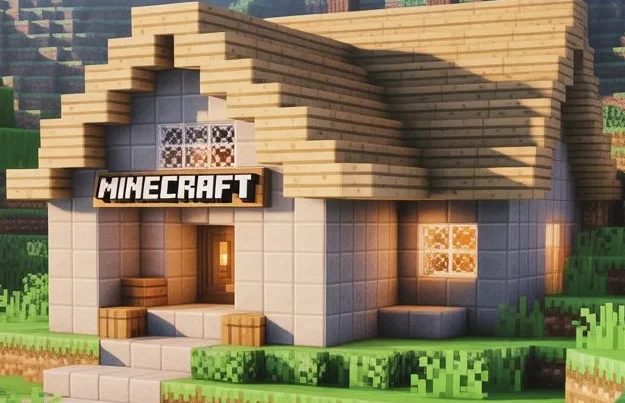
Introduction To Minecraft Skin Editor
A Minecraft editor is a tool that lets players create and customize character skins. It works for Java Edition and Bedrock Edition. Most editors run online. They need no download. Many are free to use. This tool suits beginners and experienced players alike. New players use it to stand out. Creative players use it to build an identity. PvP players use it to look sharp.
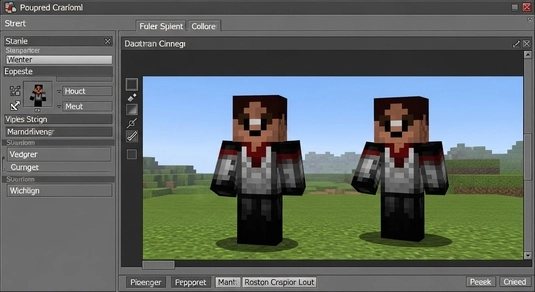
Roleplay fans use it to match characters. Minecraft skins control how your character looks in the game. They do not change gameplay. They do not give advantages. They stay fully cosmetic. Mojang allows custom skins under official guidelines. Skin editors give full control over every pixel. You can edit the head, body, arms, and legs. You can work in 2D layouts. You can preview results in 3D. You can export skins as PNG files.
Most editors support Steve and Alex models. Many support slim and classic arms. Advanced tools offer layers and shading. Simple tools focus on fast editing. Online editors work on any modern browser. They run on Windows, macOS, and Chromebooks. Some also support mobile devices. Minecraft skin editors power creativity across the community. They support user-generated content.They help players express personality. They remain safe, legal, and trusted. This guide explains how Minecraft skin editors work. It focuses on clarity, accuracy, and player-first design.
What Is a Minecraft Skin Editor?
A Minecraft skin editor is a tool that lets players design custom character skins. It edits the player model used inside the game. This model controls how your character looks to others. The editor works at the pixel level. Minecraft uses two base models: Steve and Alex. Steve has classic arms. Alex has slim arms. Skin editors support both models.
A skin editor works outside the game. It does not change gameplay files. It only changes appearance. The tool edits a flat 2D skin layout. That layout wraps around the 3D character model. Skins differ from in-game character selection. The game offers limited presets. Those presets restrict colors and details. Skin editors remove those limits. They allow full creative control.
Players use editors to create unique designs.They add clothing, armor styles, and accessories.They adjust colors with precision.They control every visible pixel.
Modern editors support skin layers. The inner layer forms the base body. The outer layer adds depth and detail. This creates richer designs. After editing, the tool exports a PNG format skin file. Minecraft uses this format officially. Players upload the file through the launcher or profile page. Skin editors power creativity across Minecraft. They help players stand out. They support roleplay, PvP, and personal expression.
How a Minecraft Skin Editor Works
A Minecraft skin editor follows a clear and simple process. It breaks a 3D character into a flat design. This design wraps back onto the player model. The system stays consistent across editions.
2D Skin Layout Explained
Minecraft skins use a pixel grid.Each pixel controls one visible color. Editors display this grid in a flat layout. The standard skin size is 64×64 pixels. This format works in all modern versions. Some editors support HD skins like 128×128. HD skins add detail but still follow the same structure. The layout maps body parts precisely. The head sits at the top. The torso appears in the center. Arms and legs sit on the sides. Each section wraps around the model in-game. Mistakes show instantly on the character. Good editors label each body part clearly. This helps beginners avoid confusion.
3D Skin Preview and Rendering
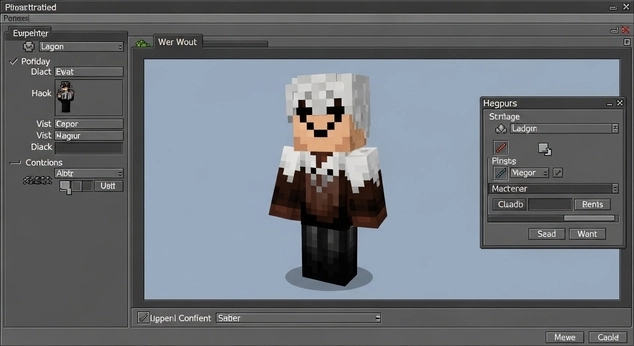
Most editors include a 3D skin preview. This preview updates in real time. Every change appears instantly. Players rotate the model freely. They view the front, back, and sides. This prevents hidden errors. Editors allow layer visibility control. You can toggle outer layers on or off. This helps test depth and shading. The preview reflects the Steve or Alex model. It matches how Minecraft renders skins.
Importing and Exporting Skins
Editors allow skin import. You can upload an existing PNG skin. The editor loads it instantly. After editing, you export a PNG file. Minecraft supports this format officially. Players apply the skin through the Minecraft launcher. Bedrock users upload it from profile settings. The skin appears instantly in-game.This workflow stays safe, simple, and reliable.
Key Features of a Minecraft Skin Editor
A Minecraft skin editor includes tools that support precision and creativity. Each feature serves a clear purpose. Together, they form a smooth editing workflow. Good editors balance power and simplicity.
Editing Tools
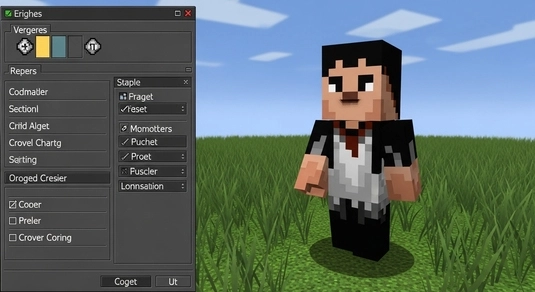
The pencil or brush tool draws individual pixels. It gives full control over skin details. Players use it for outlines and fine work. The eraser tool removes unwanted pixels. It helps fix mistakes quickly. Clean edits improve final quality. The color picker selects exact colors. It keeps shading consistent. It helps match themes and outfits. The fill tool colors large areas fast. It saves time on clothing and armor. Players use it for base layers. These tools form the foundation of every skin editor. They work together for efficient design.
Advanced Editing Features
Modern editors support skin layers. The inner layer builds the base body. The outer layer adds depth and clothing. Shading tools add highlights and shadows. They create a 3D look on flat skins. Good shading improves realism. Mirroring copies edits across both sides. It keeps arms and legs symmetrical. This feature saves time. Transparency allows invisible pixels. It supports cutouts and overlays. Minecraft handles transparency safely.
Preview and Control Tools
Zoom controls help edit small details. Players switch between close and wide views. Undo and redo track changes instantly. They encourage experimentation without risk. Layer toggles show or hide details. They help test design balance. The skin preview shows results in real time.
It reflects in-game appearance accurately. These features support confident, error-free customization.
Minecraft Skin Editor for Java vs Bedrock Editions
Minecraft Movie supports custom skins on both major editions. The process differs by platform. Clear understanding builds trust and avoids errors. Both methods stay within Mojang guidelines.
Java Edition Skin Editing
Java Edition offers the most direct skin support. Players upload skins through the Minecraft Launcher. The launcher applies changes instantly. Java uses PNG skin files. It supports Steve and Alex models. Most editors design for Java by default. Community compatibility remains strong. Multiplayer servers display custom skins correctly. Skins sync across devices using the same account. Java players enjoy full creative freedom. They face no marketplace restrictions. They can switch skins anytime. This system stays simple and reliable. Mojang supports it officially.
Bedrock, PE, and Console Skins
Bedrock Edition handles skins differently. It includes a built-in Marketplace. The Marketplace sells cosmetic items. Bedrock still allows custom skins. Players upload PNG skins from profile settings. This works on Windows and mobile devices. Mobile support remains strong. Android and iOS allow skin imports. Touch-friendly editors help mobile users. Console platforms have limits. Xbox and PlayStation restrict direct uploads. Players often link accounts through supported methods. Editors do not bypass restrictions. They only create cosmetic files. Platform rules control final usage. Both editions respect fair play. Skin editors stay safe, legal, and trusted.
Types of Minecraft Skin Editors
Minecraft skin editors come in different forms. Each type serves a specific user need. Choosing the right editor improves results. All types focus on cosmetic customization only.
Online Minecraft Skin Editors
Online editors run inside a web browser. They need no installation. Users start editing instantly. These tools work on most devices. They support Windows, macOS, and Linux. They also work well on Chromebooks. Browser-based editors stay beginner-friendly. They include basic tools and live previews. Many support skin imports by username. Players prefer online editors for speed. They suit school devices and shared systems. They keep storage clean. Trusted platforms like community skin sites host these tools. They follow standard skin formats. They remain safe and accessible.
Mobile Skin Editor Apps
Mobile skin editors run on Android and iOS. They focus on touch-based controls. Large buttons improve accuracy. These apps support on-the-go editing. Players design skins anywhere. Quick changes feel easy. Most mobile editors support imports and exports. They save skins as PNG files. They sync with cloud storage on some devices. Mobile apps suit casual creators. They work best for simple designs. They may limit advanced shading tools.
Advanced and Desktop Editors
Desktop editors target advanced users. They offer high layer precision. They support detailed shading and overlays. Professional pixel artists prefer these tools. They allow full zoom control. They support complex designs. Desktop editors demand more skill. They reward patience and planning. They deliver high-quality skins. Each editor type fits a different workflow.
Popular Minecraft Skin Editors
Several platforms support Minecraft skin creation. Each serves a different role in the community.
These tools remain informational, not endorsements. They follow standard skin formats. The Skindex is one of the largest skin platforms. It hosts a massive skin library. It includes a built-in online editor. Players edit skins directly in the browser. The site supports Steve and Alex models. Community uploads drive its popularity. NovaSkin focuses on detailed customization.
It offers strong layer controls. It supports advanced shading techniques. Many experienced creators use it. The editor targets users who want precision. It also supports skin previews. Planet Minecraft serves as a creative hub. It hosts skins, maps, and texture packs. Its skin editor integrates with community content. Creators share and discuss designs openly. The platform values user-generated work.
NameMC works differently. It tracks usernames and skins. It does not focus on editing tools. Players use it to preview skins on accounts. It helps check skin availability and history. All these platforms support PNG skin files. They follow Minecraft’s cosmetic guidelines. They do not modify gameplay. They respect Mojang’s skin system. Players choose platforms based on workflow. Some prefer editing tools. Others prefer discovery and sharing.
How to Create Your Own Minecraft Skin
Creating a Minecraft skin follows a simple workflow. Each step builds on the last. You control every detail. The process stays safe and cosmetic.
Choose a Base Skin
Start with a base skin. You can use a blank template. You can also import an existing skin. Choose the correct model. Pick Steve for classic arms. Pick Alex for slim arms. A good base saves time. It sets proper proportions. It avoids mapping errors later.
Customize Colors and Clothing
Select colors using the color picker. Apply base tones to the body. Add clothing next. Use the fill tool for large areas. Use the brush for edges. Keep colors consistent. Think about contrast. Clear designs look better in-game. Avoid overusing dark shades.
Add Details and Shading
Details give skins personality. Add eyes, patterns, and trims. Use light shading carefully. Place shadows along edges. Highlight raised areas. Work on outer layers for depth. Use transparency when needed. Small details make big differences.
Preview in 3D
Open the 3D preview. Rotate the model fully. Check all sides. Toggle layers on and off. Fix hidden mistakes. Adjust shading if needed. The preview shows true in-game appearance.
Download and Apply the Skin
Export the skin as a PNG file. Save it locally. Upload it through the Minecraft launcher. Bedrock users apply it in profile settings. Your custom skin appears instantly in-game.
Common Minecraft Skin Customization Ideas
Minecraft skin editors unlock endless creative options. Many players start with proven themes. These ideas help inspire unique designs. They also match popular community trends.
Anime Skins
Anime skins remain very popular. Players recreate anime characters. Others design original anime styles. These skins use bold eyes and clean outlines. Hair colors stay vibrant. Clothing often follows simple shapes. Editors help control fine details. Outer layers add depth to hair and coats. Shading keeps faces expressive.
PvP Skins
PvP skins focus on clarity. They avoid busy patterns. They use strong contrast. Dark tones reduce visual noise. Bright accents highlight identity. Slim designs improve recognition. Many PvP players prefer simple armor-style outfits. Clean lines help during fast combat.
Superhero Skins
Superhero skins draw from comics and films. Players design capes, masks, and emblems. Outer layers add armor and logos. Color blocking defines muscle shapes. Bold colors improve visibility. These skins suit multiplayer and roleplay servers.
Minimalist Skins
Minimalist skins use fewer colors. They rely on clean shading. They focus on shape over detail. These skins load fast visually. They look sharp at any distance. Many creators prefer this style.
Roleplay Character Skins
Roleplay skins match character backstories. Players design medieval, sci-fi, or fantasy outfits. Details reflect roles and professions. Accessories add storytelling depth. Skin editors help bring characters to life.
Is Using a Minecraft Skin Editor Safe and Legal?
Yes, using a Minecraft skin editor is safe and legal. Custom skins change appearance only. They do not affect gameplay. Minecraft skins remain purely cosmetic. They do not increase strength. They do not unlock abilities. They do not give competitive advantages. Mojang allows custom skins officially. Minecraft supports skin uploads by design. Both Java and Bedrock editions include skin systems. Skin editors do not modify game files. They do not inject code. They do not interact with servers. They only create PNG image files. These tools do not use mods. They do not exploit bugs. They do not bypass protections. Trusted editors respect Mojang guidelines. They follow standard skin formats. They avoid misleading claims.
Reputable platforms avoid fake downloads. They run in browsers or trusted app stores. They do not bundle malware. Skin editors never require account bypassing. Users upload skins through official launchers. Account security remains intact. Microsoft manages Minecraft accounts. Skin uploads stay tied to your profile. Permissions remain unchanged. Using a skin editor supports creativity. It fits community standards. It aligns with fair play. Players worldwide use these tools safely. They remain a core part of Minecraft culture.
FAQs
Final Verdict Why Minecraft Skin Editors Matter
Minecraft Classic editors play a key role in the game’s culture. They give players full creative freedom. Every design reflects personal style. These tools help players stand out. They support self-expression in multiplayer worlds. They strengthen community identity. Skin editors work across Minecraft versions. They support Java Edition. They support Bedrock Edition. They follow official skin systems. Beginners benefit from simple tools. Clear layouts reduce confusion. Live previews build confidence. Advanced users gain precision. Layers support detailed designs. Shading adds depth and realism.
These tools stay player-first, prioritizing creativity over competitive advantage. They are strictly cosmetic and never affect core gameplay, ensuring that Minecraft remains fair and balanced for everyone. Skins modify appearance only—no stats, no boosts, no unfair perks—so fair play is always respected.
The community drives innovation in the world of Minecraft skins. Players share their creations freely on platforms like Minecraft Marketplace, Planet Minecraft, and community forums, inspiring others to design unique characters, outfits, or themed sets. This collaborative environment encourages experimentation and creativity while fostering a sense of belonging within the Minecraft ecosystem.
Mojang officially supports custom skins, and reputable skin editors follow platform rules. Trusted editors allow players to create, upload, and modify skins safely, protecting both accounts and devices from malicious software. This adherence to rules ensures that skin editors remain secure, reliable, and enjoyable for players of all ages.
Minecraft skin editors empower imagination. They turn players into creators, letting them express personality, style, and humor within the game. From designing heroic outfits to recreating favorite characters from movies or games, players can customize their appearance endlessly. Skins keep Minecraft personal, engaging, and creative, giving every player a sense of identity in multiplayer servers and community worlds.
By maintaining safety, community standards, and a focus on creativity, Minecraft skin editors enhance the overall gaming experience. They strengthen collaboration, inspire learning, and ensure that personalization remains a fun, risk-free, and integral part of Minecraft play.